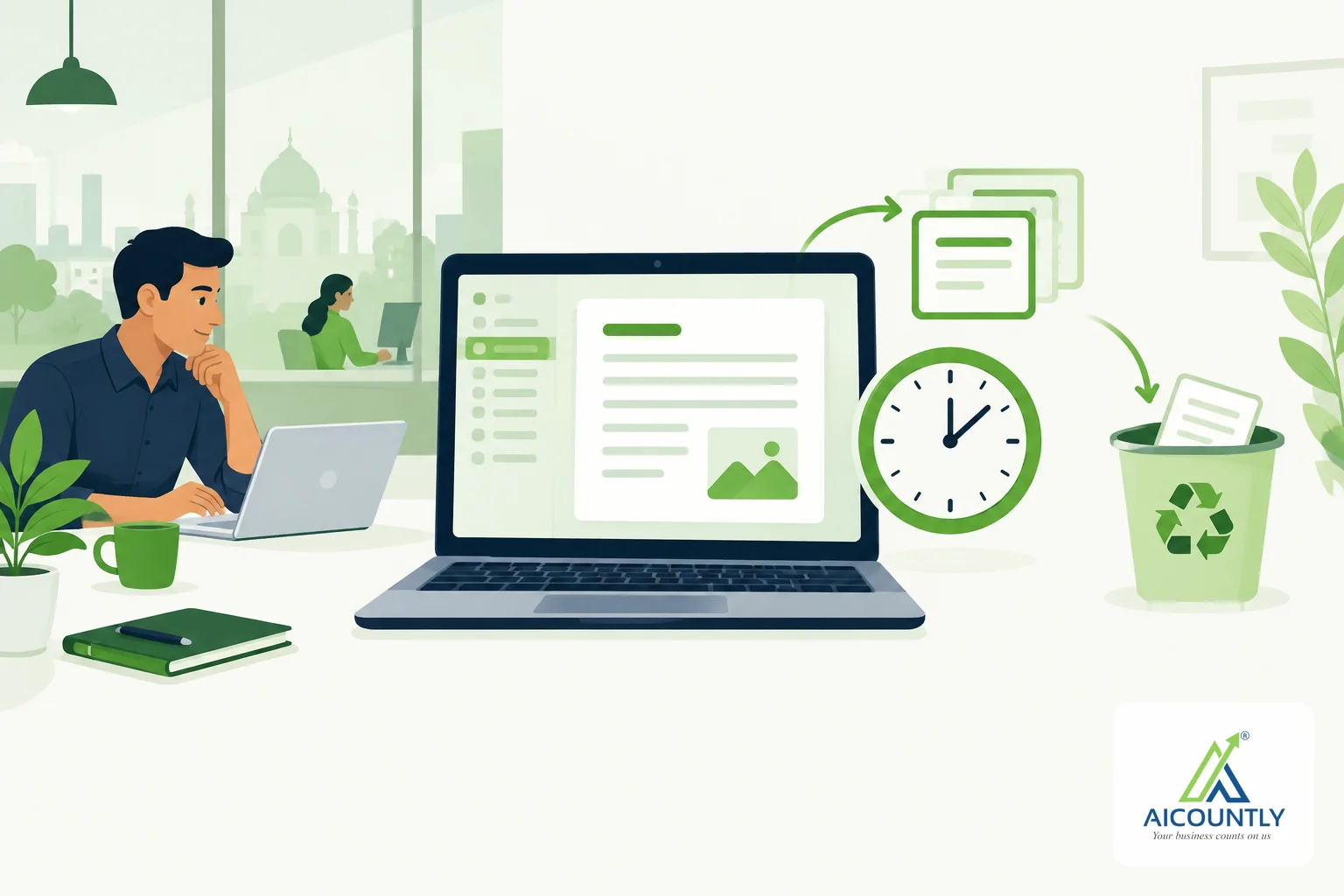
If you have overwritten a paragraph in a client note or trashed the wrong meeting record, you can usually get it back. In Aicountly Notes, version history lets you read an earlier copy of a note and restore it, and Trash keeps a deleted note for a fixed number of days before it is removed for good.
This guide walks through both, in the order you will need them: finding an earlier version, restoring it safely, recovering a trashed note, and the habits that keep accounting and compliance notes safe.
Why version history matters for finance and compliance notes
Notes in an accounts or tax practice change often: a reconciliation checklist is edited by three people, a TDS follow-up list is trimmed at month end, a client call summary is tidied after the call. One bad edit, or one accidental delete, can cost a morning of rework.
Notes is built so that a save never silently loses your writing. Earlier copies are kept as checkpoints, so you can compare, and go back, instead of retyping from memory.
How checkpoints are kept
A checkpoint is a saved copy of the note at a point in time. Notes does not save a copy for every keystroke. Instead, consecutive autosaves by the same person within a short window are folded into one entry, and a document that has not changed writes nothing.
Each checkpoint in the list shows a version number, who made it, when, and why it exists. The reasons you will see are:
- While writing – an ordinary autosave.
- Saved by hand – you saved explicitly.
- Before a restore – a copy of the note taken just before you rolled it back.
- Imported – the note was brought in from a file.
- From a template – the note started from a template.
Open version history
- Open the note you want to look at.
- In the note header, choose Version history (the clock icon). On a phone, it sits inside the … menu.
- The side panel lists the checkpoints, newest first. If the note is long-lived, the panel tells you how many of the total it is showing.
Only one side panel is open at a time, so opening version history closes the note info or comments panel.
Read an old version before you change anything
Select a checkpoint to see what the note said at that time. The preview is read-only: headings, lists and quotes keep their shape, and other blocks appear as their text. Nothing is changed by looking. Use All versions to go back to the list and check another one.
If you only have view access to a note, you can read earlier versions but not restore one. Ask the note's owner or an editor to do it.
Restore a version without fear
- Select the version you want.
- Choose Restore this version.
- Confirm in the dialog.
Restoring is treated as an ordinary edit. What the note says now is checkpointed first (listed as “Before a restore”), so it appears in the same list and can be restored back. Picking the wrong version costs you one more click, not your latest writing.
Recover a note from Trash
Moving a note to Trash does not delete it straight away, so Notes does not ask for confirmation when you do it. Instead you get a message with an undo action.
A note opened from Trash shows a banner: it will be deleted for good in a number of days unless you restore it, with a Restore button right there. The retention period is a setting of the deployment; the default in Notes is 30 days, so check the number in the banner rather than assuming it. Only the note's owner can restore it.
The same note menu also has Delete forever, which asks you to confirm first, and Trash has an Empty Trash button that removes everything in your Trash, along with attachments and history, from every device. That cannot be undone, so scan the list before using it.
Habits that keep compliance notes safe
- Before a big rewrite of a checklist, use a manual save so there is a clear restore point.
- Do not restore over a note others are editing without telling them; restoring changes what everyone sees.
- Review Trash at month end rather than emptying it by reflex.
- Keep the final copy of anything that supports a filing in your document store as well, so a note is never your only record.
For related workflows, see how to send a note to your CA as a file or PDF, how smart folders surface overdue reminders and open actions, and how an audit trail in Drive shows who viewed or deleted a document.
Key takeaways
- Version history keeps checkpoints you can read before you restore anything.
- Restoring checkpoints the current text first, so it is reversible.
- Trashed notes stay recoverable until the retention period shown in the banner ends.
- Delete forever and Empty Trash are permanent – use them deliberately.
If your team keeps working notes alongside the books, Aicountly Notes gives you version history and a recoverable Trash so a slip of the keyboard does not become lost work.