Your CA has asked for the working behind a figure, and it lives in a note: a reconciliation list, a TDS query log or a month-end checklist. To send it out of Notes, open the note's menu and choose Export… for a Markdown, web page or plain text file, or Print / Save as PDF for a PDF. This guide shows which one to pick and what to check before you send it.
Why a note sometimes needs to leave the app
Sharing a note inside Notes is the best option when your CA also has access, because they see the live version. But accountants often ask for something they can file with the working papers, attach to an email or keep after the engagement ends. A file with a clear title and a date does that job better than a link that will keep changing.
Typical examples are a list of invoices you chased for a TDS certificate, the points you noted down for the half-year close, or the explanation behind a GST mismatch. If you are building such notes from scratch, our guide to a monthly compliance checklist in Notes shows one way to keep them tidy.
Option 1: Export as a file
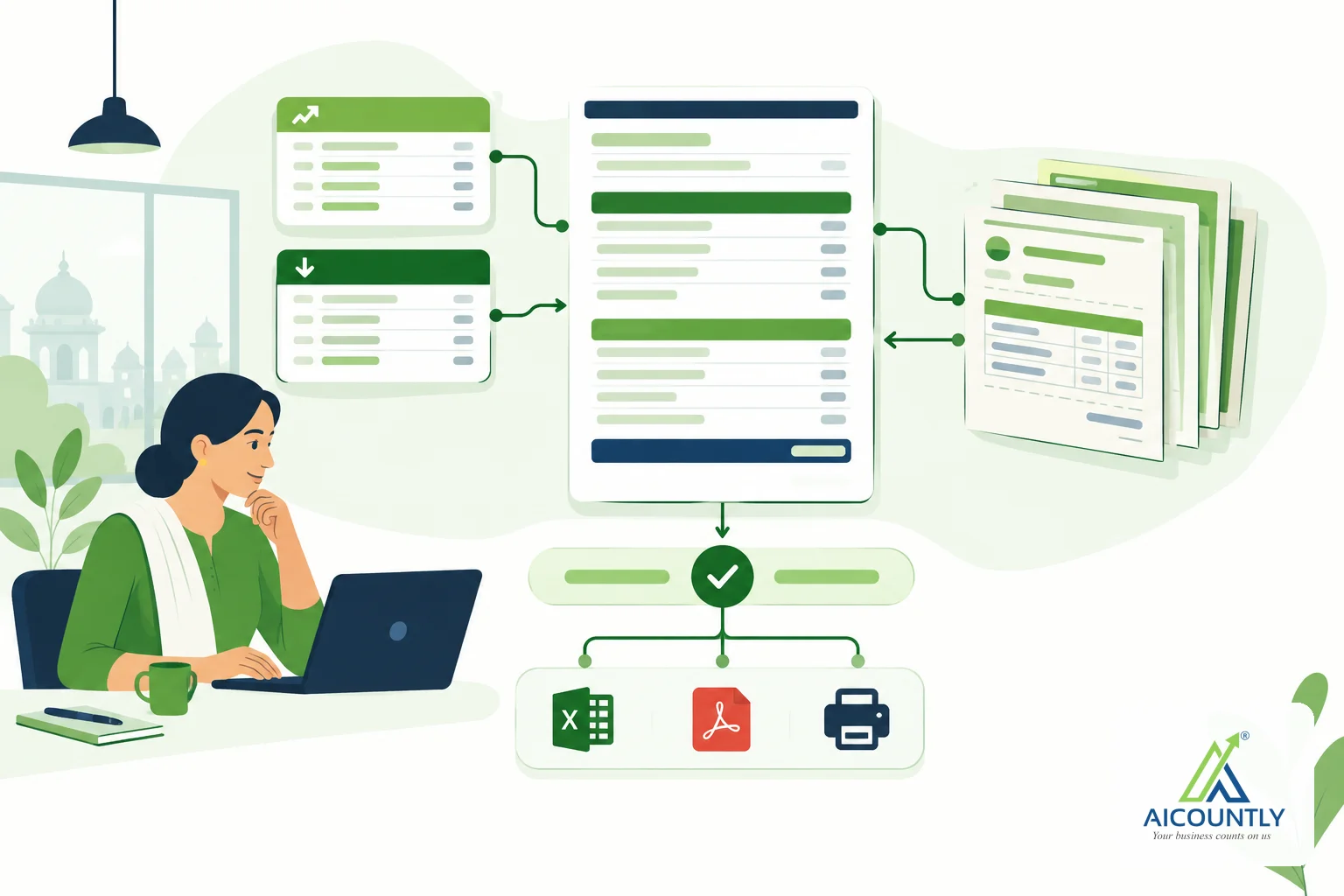
Open the note's menu and choose Export…. Notes then offers three formats, and the file downloads straight to your device:
- Markdown (.md) – plain text with light formatting marks. Good if you want to paste the content into another tool or keep a simple archive.
- Web page (.html) – opens in any browser with headings, lists and tables intact. This is the closest to the way the note looks on screen.
- Plain text (.txt) – no formatting at all. Opens everywhere, including on a phone with no special app.
The file is named after your note's title. An untitled note is named based on its first line, ensuring that a folder of exports does not contain multiple files named "Untitled".
What the exported file contains
The export is built to be read away from the app. The exported file includes a line with the last modified time and the export time in IST, followed by the note content. Photos you uploaded into the note (PNG, JPEG, GIF or WebP) are embedded inside the file, so they still show when the file is opened elsewhere.
Two limits apply to those embedded pictures. A single picture larger than 8 MB is not embedded, and all embedded pictures together are capped at 10 MB. Anything that does not fit is replaced by a short marker such as "[image: description]", so you can see that something was there. Attached files are not embedded in any format; they appear as "[file: name]" text. If the CA needs the attachment itself, send it separately.
Links to other notes retain their display text but lose their internal address, as these addresses are not functional outside the Notes application. If the other note matters, mention its title in the text.
Option 2: Print or save as PDF
Notes does not produce a PDF file by itself. Instead, Print / Save as PDF opens your browser's print dialog, and there you choose "Save as PDF" as the destination. This gives you your browser's own page-size and margin choices.
What prints is the note, not the app around it. The menus and sidebars are hidden, and a header is added with the title, the author's name if you own the note, the last modified time and the print time, all on Indian time. Wide tables are fitted to the page width, with smaller type for tables that have many columns. That helps when a reconciliation has ten or more columns, but it is still worth looking at the preview before saving.
A PDF is usually the right choice when the CA will print the working or add it to a file, because the layout cannot be changed by mistake.
Which format for which situation
SituationSuggested format CA wants to read it and file itPDF through Print / Save as PDF Note has photos of bills or a tableWeb page (.html) or PDF Only plain points, no layout neededPlain text (.txt) You will reuse the text in another toolMarkdown (.md) CA also uses NotesShare the note instead of exportingNotes that cannot be exported from the server
A private note is encrypted on the device that wrote it, and the server holds no key to read it. For that reason the export request is refused with a message saying that such a note can only be exported from the app. Plan for this before a deadline: if the working is sensitive, decide in advance whether it stays private or whether you keep a standard note for papers you expect to hand over.
Exports are also rate limited, to 20 in five minutes per user, because rendering a note with pictures is heavy work. A handful of notes is no problem, but exporting a whole notebook one by one in a burst may make you wait a few minutes.
A short checklist before you send
- Read the note top to bottom. Remove personal remarks that are not meant for the CA.
- Check that the title says what the working is, for example "TDS Q2 – unmatched challans".
- Look at the last modified line in the file. If it is older than your latest figures, update the note and export again.
- Confirm that any picture you rely on is visible in the file, not shown as an "[image: …]" marker.
- Send attachments mentioned as "[file: …]" separately.
- Keep the exported file in your own records too, so you can show what was sent and when.
For official deadlines and filings, rely on the notices on the government portals and your CA's advice. The notes you share only support that work.
Key takeaways
- Use Export… in the note menu for Markdown, web page or plain text files.
- Use Print / Save as PDF when you want a fixed layout for filing.
- Pictures are embedded up to 8 MB each and 10 MB in total; larger ones and attached files show as text markers.
- Private, device-encrypted notes cannot be exported through the server.
- Share the note directly when your CA is also on Notes, and keep an exported copy when you need a dated record.
If you keep your compliance workings in Notes, the menu on each note gives you these export options. You can also set up views that gather the notes you will need at filing time with smart folders in Notes, and for finished documents that your CA should open with the right access, see how to share a document with your CA in Drive. To learn more about the app, visit the Notes page.