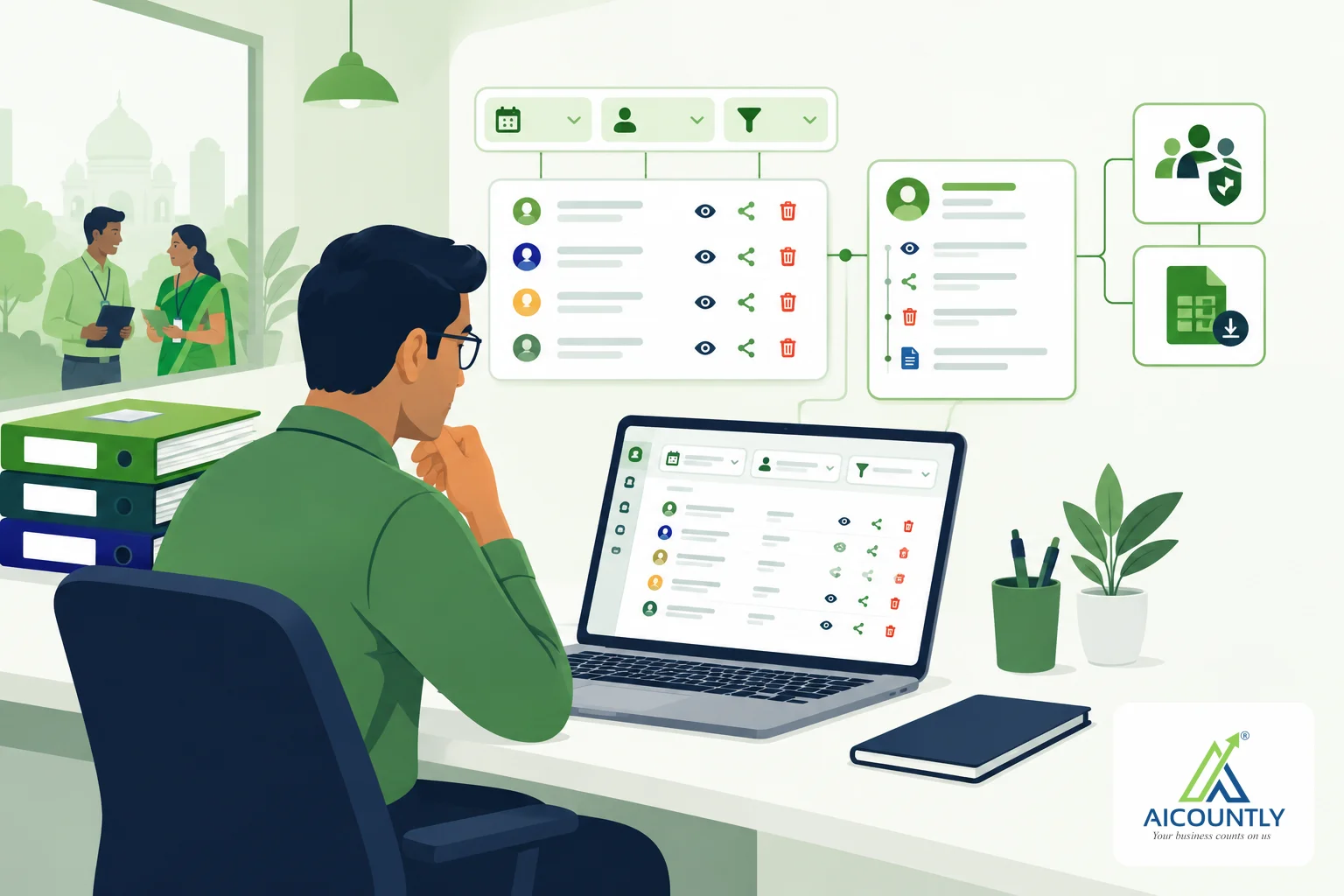
When a client's GST workings, TDS challans or audit papers sit in one shared folder, sooner or later someone asks: "Who opened this file, and who changed who can see it?" In Aicountly Drive, the Audit Trail page answers that question. It lists who did what to a company's documents, access and imports, and its entries cannot be edited or removed. This guide shows how to read it, filter it and keep access to it under control.
What the Drive Audit Trail records
The Audit Trail is a company-level log. Open Drive inside a company and choose Audit Trail in the left menu. The page describes itself as "who did what to this company's documents, access and imports."
The Action filter shows the kinds of events Drive tracks:
- Document events: uploaded, viewed, downloaded, exported, shared, moved, moved to trash, restored, permanently deleted and purged from trash.
- Legal hold and retention: legal hold placed or released, and retention changed.
- Access changes: any change to who can open a document.
- Other activity: upload sessions, imports, AI jobs and custodian actions.
- Audit-on-audit: when the trail itself is exported, and when access to the trail is changed.
Each row shows when it happened, the action, the record it touched, a one-line summary, who did it and a severity: info, material or security.
Who is allowed to see it
Not every member of the company can open the trail. Drive shows it to the company owner and to members the owner has allowed. Anyone else sees a message that they need the owner's permission instead of an empty table.
This matters for a small business sharing files with an outside CA or consultant. Your accountant can work in Drive without being able to read the log of every person's activity, unless you decide otherwise.
Step by step: find who did what
- Open Drive in the right company and click Audit Trail.
- Set a From and To date. For a month-end review, use the first and last day of the month.
- Pick an Action, for example "Downloaded" or "Permanently deleted". Choosing "Documents (all)" covers every document event.
- Optionally set a Severity (for instance Security) or pick a Person from the company member list.
- Type a document name or a word from the summary in the Search box, then click Apply.
- Click any row to open the details panel. Clear resets all filters.
The table shows 50 entries per page, with Previous and Next buttons and a count such as "1–50 of 212".
Reading one entry in detail
The details panel adds what the table cannot fit: the exact record, the person, their IP address, a request reference and the client (browser or app) used. If a field was changed, a table lists the field with its old and new value. Where Drive stored them, "Before" and "After" snapshots and extra details appear below.
The request reference is useful when you need to pin down one specific action with your IT support or with Aicountly.
Useful checks for an Indian small business
Before handing files to your auditor or CA
Filter by "Access changes" for the period. You can confirm that only the people you meant to include were given access, and that a former employee's access was taken away.
When a document looks missing
Filter by "Moved to trash", "Permanently deleted" or "Moved". It tells you whether a file was removed, moved to another folder or never uploaded. Combine it with the Search box and the document's name.
For records you must keep
Books, vouchers, invoices and returns have to be preserved for the periods set by law. The trail records legal hold and retention changes, so you can see who placed a hold on a file or changed its retention. Check the exact retention period for your records with your CA, because it depends on the law that applies.
When a sensitive file travels
Filter by "Downloaded" or "Exported" and a date range to see which files left Drive in that window. If you have already read our note on sharing a document with your CA in Drive, this is the other half of the story: the share is the grant, the trail is the evidence.
Export the trail as a CSV
If you are allowed to export, an Export CSV button appears next to Refresh. The export respects the filters you applied. If there are too many rows, Drive exports only the newest ones and tells you the total, so narrow the dates and export again to get the rest.
Exporting is itself recorded, as "Audit trail exported", so the log keeps track of who took a copy of it.
Owner controls: who can view and who can export
If you are the owner, a panel called Who can view this trail appears at the top of the page.
- You always have access.
- Pick a member from your company list and add them to let them read the trail.
- Tick Can export only for people who should be able to download it. Untick it later to withdraw that right.
- Click Revoke to remove someone. Access also ends automatically once a person is no longer a member of the company, and the panel flags them as "no longer a member".
Keep the list short. A good habit is to review it whenever someone joins or leaves, and again before your annual audit. These changes are logged under "Audit trail access changed".
Key takeaways
- The Audit Trail lists who did what to your company's documents, access and imports, and entries cannot be edited or removed.
- Only the owner and members the owner allows can read it; export is a separate permission.
- Filter by date, action, severity, person or search text, and click a row for old and new values, IP address and request reference.
- Use it before an audit, after staff changes and whenever a file goes missing.
- Confirm record-retention periods for your business with your CA.
If your team keeps invoices, returns and working papers in one place, Aicountly Drive gives you that log without any extra set-up. Open the Audit Trail once a month and make it part of your close routine, alongside your book-closing checklist.