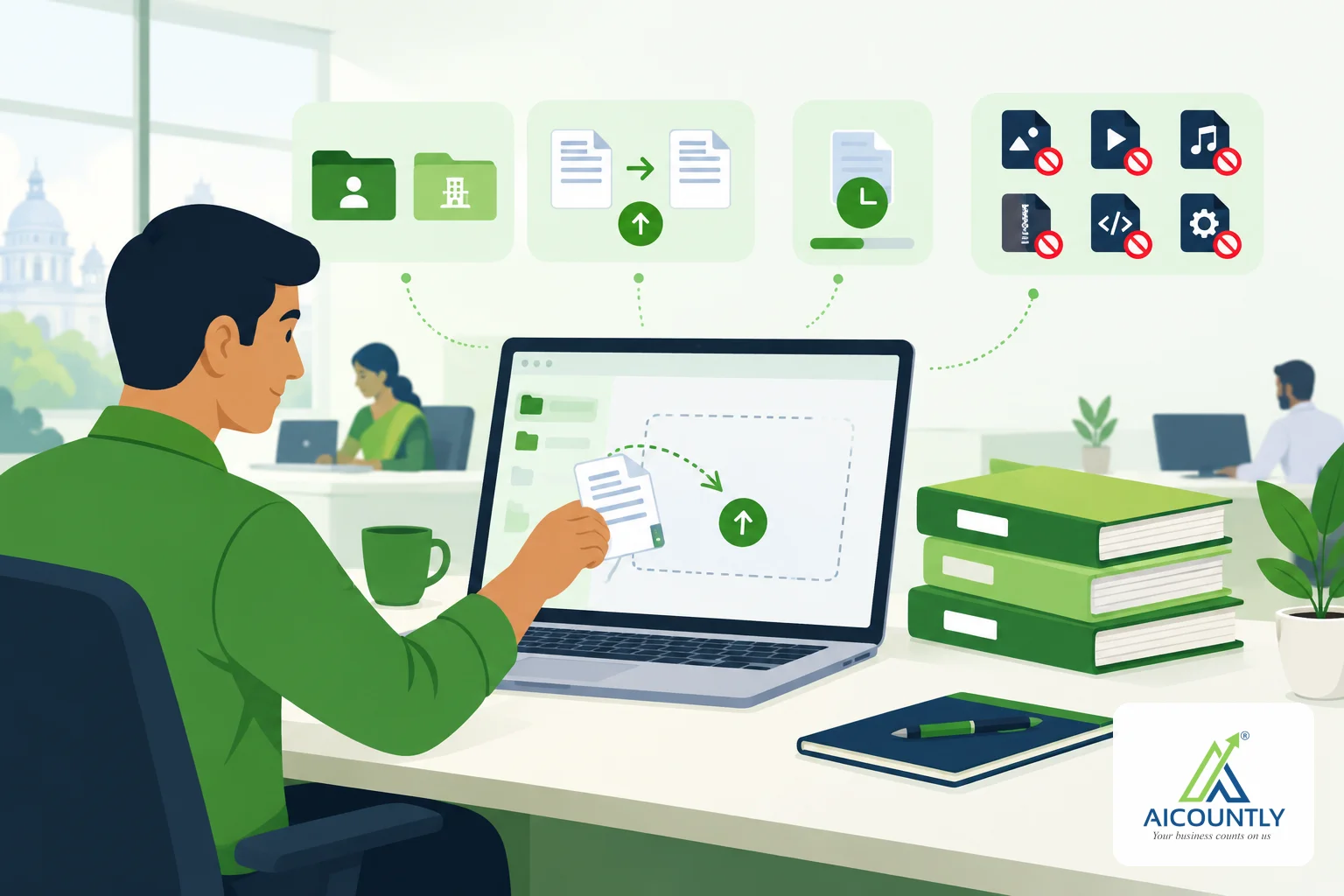
Uploading documents to Drive is simple, but a few files get turned away before they are sent, and the reason is not always obvious. This guide explains how to upload files to Drive, which files Drive refuses, the size limit, and how to fix the usual upload errors.
Where your upload goes: My Documents or Company Documents
The Upload documents window tells you the destination at the top: either To My Documents or To Company Documents. If you opened it from inside a folder, the folder path is shown next to it, and the files are filed there.
- My Documents are personal files. They work without choosing a company.
- Company Documents need a company, financial year and branch to be selected first. If none is selected, Drive stops with the message "Select a company, financial year, and branch before uploading."
Picking the right place matters for who can see the file later. Our guide to sharing a document with your CA in Drive covers access after the upload.
How to upload files to Drive: drop, choose, then press Upload
- Open the Upload documents window.
- Drag files onto the dashed area, or click it and choose files. You can add several at once.
- Check the list. Each file shows its size and a tick or a cross.
- Press Upload. With more than one file the button reads "Upload 5 files", for example.
Drive sends up to three files at the same time, each with its own progress bar. When all of them finish, the window shows "All files uploaded" and closes by itself after a moment.
The size limit: 500 MB per file
Each file can be up to 500 MB. A bigger file is marked straight away with a message such as "Too large", showing the file's size and the maximum. Nothing is sent, so you do not wait for a long upload only to see it fail. An empty file (0 bytes) is also refused; if it was meant to be a folder, the message reminds you to open the folder and select the files inside.
For very large items, such as a long scanned book of accounts, split the scan into parts or compress the images before uploading.
Files Drive will not accept
Drive checks every file before it is sent, so you see the reason on the row itself.
Programs and scripts
Executable and script files are blocked, for example .exe, .bat, .cmd, .js, .vbs, .ps1, .sh, .msi, .jar and .dll, and also web-server files such as .php and .asp. The message reads ".exe files can't be uploaded (programs and scripts are blocked)."
The check looks at every part of the name, so invoice.exe.pdf is refused too. It also ignores trailing spaces and dots, which Windows drops when saving. Rename a harmless file if it was named oddly; do not rename a real program to get past the check.
Web pages and unfamiliar types
Files that are HTML or JavaScript by content type are refused as "web pages, programs and scripts". Other types are accepted if they are ordinary business files: documents, spreadsheets, presentations, PDFs, images, audio, video, e-mails (.eml, .msg) and archives such as .zip, .7z and .rar. If your browser gives a file a type Drive does not know, the file is still accepted when its extension is a familiar one like .xlsx or .pdf.
Folders
Drive uploads files, not folders. If you drag a whole folder onto the window, it is skipped with a note: "Drive uploads files, not folders. Open the folder and select the files inside." Open the folder, select all the files with Ctrl+A, and drop those instead.
Same name twice in one upload
If two files in the same upload have the same name, Drive does not refuse them. It keeps both and shows a warning on the second row: "Another file in this upload has the same name." That is your cue to check you did not pick the same bank statement twice.
Cancel, skip and retry
- Cancel on a row stops that one file while it is uploading.
- Skip on a waiting row removes it from the queue while others are still sending.
- Retry failed appears after an error. It sends only the failed files again, not the ones already uploaded.
- If you close the window while uploads are running, Drive asks first: "Stop the uploads in progress? Files already uploaded are kept."
A file shows "Saving…" once the progress passes 85%; at that stage the Cancel button disappears while Drive finishes storing it.
Choosing the product label for the file
When uploading, you can tag the file to the Aicountly app it belongs to, such as Smart Books, Billing, Inventory, or Manage. Untagged uploads default to Drive's own label. A few labels, such as Auditor, Connect and Secretarial, are not offered here because only those apps may file under them. Using the label makes the document easier to find later; our guide to searching Drive by name, tag or date shows how.
A simple upload habit for month-end
Before month-end or return filing, gather the bank statements, purchase bills and challans, then upload them in one go into a folder named for the month. Work from the list: clear every red cross first, then press Retry failed. If you need to prove who touched a file afterwards, the Drive Audit Trail records views, shares and deletions. For records you must not lose, read about retention rules and legal hold in Drive.
Key takeaways
- Check the destination line: My Documents or Company Documents, plus the folder.
- Company uploads need a company, financial year and branch selected.
- Maximum 500 MB per file; empty files are refused.
- Programs, scripts and web pages are blocked, even when hidden in a name like invoice.exe.pdf.
- Folders are skipped; select the files inside instead.
- Use Retry failed instead of starting over.
If your team keeps its accounts papers in Aicountly Drive, uploading in clean batches with the right label saves time when your CA asks for a document. Confirm any retention needs for your records with your CA.