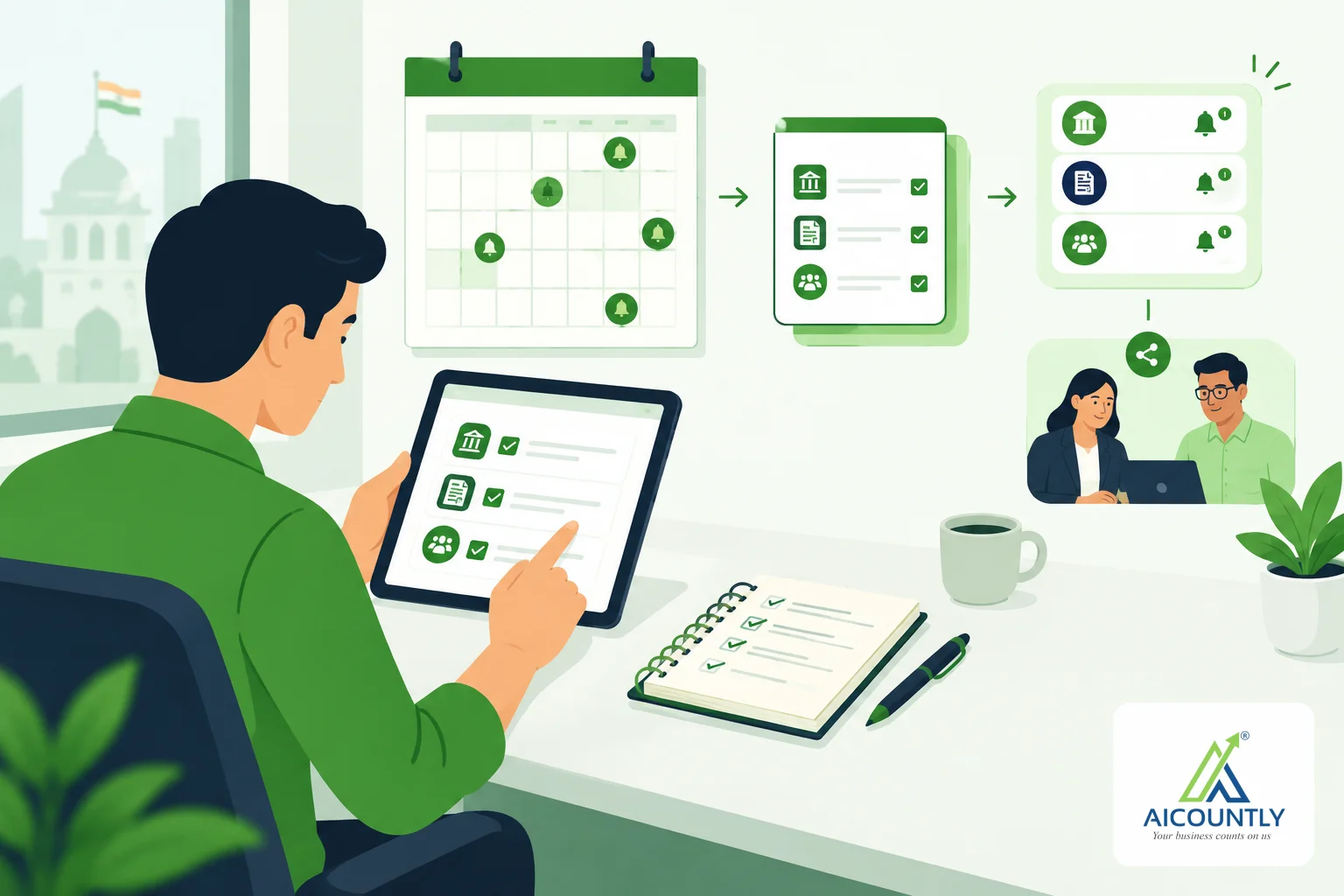
Sharing a document in Drive with your chartered accountant (CA) or a colleague comes down to choosing one of three access levels: Can view, Can view & download or Can edit. This guide shows how to share a document in Drive, how to pick the right level for a CA, and how to change or take back access later.
Most small businesses still send year-end files over messaging apps. The copies go out of date, you cannot tell who holds the latest one, and you cannot take a file back. Sharing from one place, with a level you chose, avoids all three problems.
Pick the access level before you click Share
Drive offers three levels, and each one includes the ones before it:
LevelWhat the person can doGood for Can viewSee the document in the preview; no downloadA bank manager or auditor who only needs to look at a sanction letter or a signed agreement Can view & downloadView and download a copyYour CA collecting purchase bills, bank statements or Form 26AS for filing Can editView, download and upload a new versionA colleague who maintains a working file such as a fixed-asset registerWhen you add someone, Drive starts them at Can view & download. Change it before you confirm if you want less or more. As a rule, give the lowest level that lets the person finish the job.
Share a document with your CA, step by step
- Open the document from My Documents or Company Documents in the left menu. A details panel opens with the document's actions.
- Click Share. A Share document window opens.
- Under Add people, search for and pick the person. You can add several people in one go.
- Each person you picked appears under Ready to share with and a count. Use the dropdown next to each name to set their level, or Remove to drop someone you picked by mistake.
- Click the button that reads Share with and the number of people. Drive confirms who got which level.
If sharing fails for someone, Drive shows the reason next to their name and keeps only those people in the list, so you can fix the problem and retry without picking everyone again. The company workspace is the usual cause: for a company document, the person you pick has to be a member of that company in Manage. If you work with an outside CA, add them to the company first. Our guide on creating a company inside a shared workspace explains how accountants and clients work in one workspace.
Only the owner of a document, or someone who can manage it, sees the sharing controls. Anyone else sees a note saying only the document owner can share it.
Check who has access, and change it
Sharing is not a one-time decision. Open the same details panel and look at Who has access. It lists everyone with a grant, shows their current level, and lets you change it or remove their access. The owner is shown as Owner and cannot be edited. If a person is no longer a member of the company in Manage, Drive flags that next to their name, which is a good prompt to remove them.
Do this review at natural points: after the audit is signed, after you change your CA, or when an employee leaves. A short review before you close the books is a good habit, and it fits well alongside a half-year book closing checklist.
What the person you shared with sees
Documents that others share with you appear under Shared With Me in the left menu. A shared document stays reachable there even if you have a different company, financial year or branch selected, so your CA does not have to switch context to find it. Drive's own documentation notes that an expired grant opens nothing, and that a colleague's general company access does not extend a grant made for another context.
If someone shares a file with you that you no longer need, you can remove it from your own list. There is a short help article on how to stop seeing a shared document, and another on sharing a document with colleagues.
Archive and Trash: access does not disappear quietly
Two situations catch people out:
- Archived documents keep the access they had. A company document you archive is still reachable by the colleagues who could reach it before, and an archived personal document stays personal.
- Trashed documents are visible only to people who could edit them, because they are the ones who can restore or delete the file. A person with view or download access will no longer see it in the Trash. Restoring the document brings every grant back.
So before you trash a file your CA is using, tell them, or they may think you removed their access.
A practical routine for sharing with your CA
- Keep the year's papers in company documents rather than your personal ones, so the company keeps ownership when people leave.
- Share with Can view & download for filing support, and keep Can edit for people who maintain the file.
- Upload a corrected file as a new version of the same document instead of sharing a second copy. People with edit access can do this from the document panel.
- Review Who has access once a quarter and when someone's role changes.
For tax-time reconciliations, your CA will ask for the same few files each year. A guide such as reconciling Form 26AS with AIS before you file lists what to gather, and Drive is a sensible place to keep them. General guidance only; confirm what your CA needs for your case.
Key takeaways
- Choose one of three levels: Can view, Can view & download, Can edit. Each includes the earlier ones.
- Click Share in the document panel, add people, set a level for each, and confirm.
- Use Who has access to change or remove access later.
- Shared files appear under Shared With Me; archived files keep their access; trashed files are limited to editors.
- For a company document, the person needs to be a member of that company in Manage.
If you want one place for these shared files, Drive keeps your company and personal documents together with this sharing control built in.