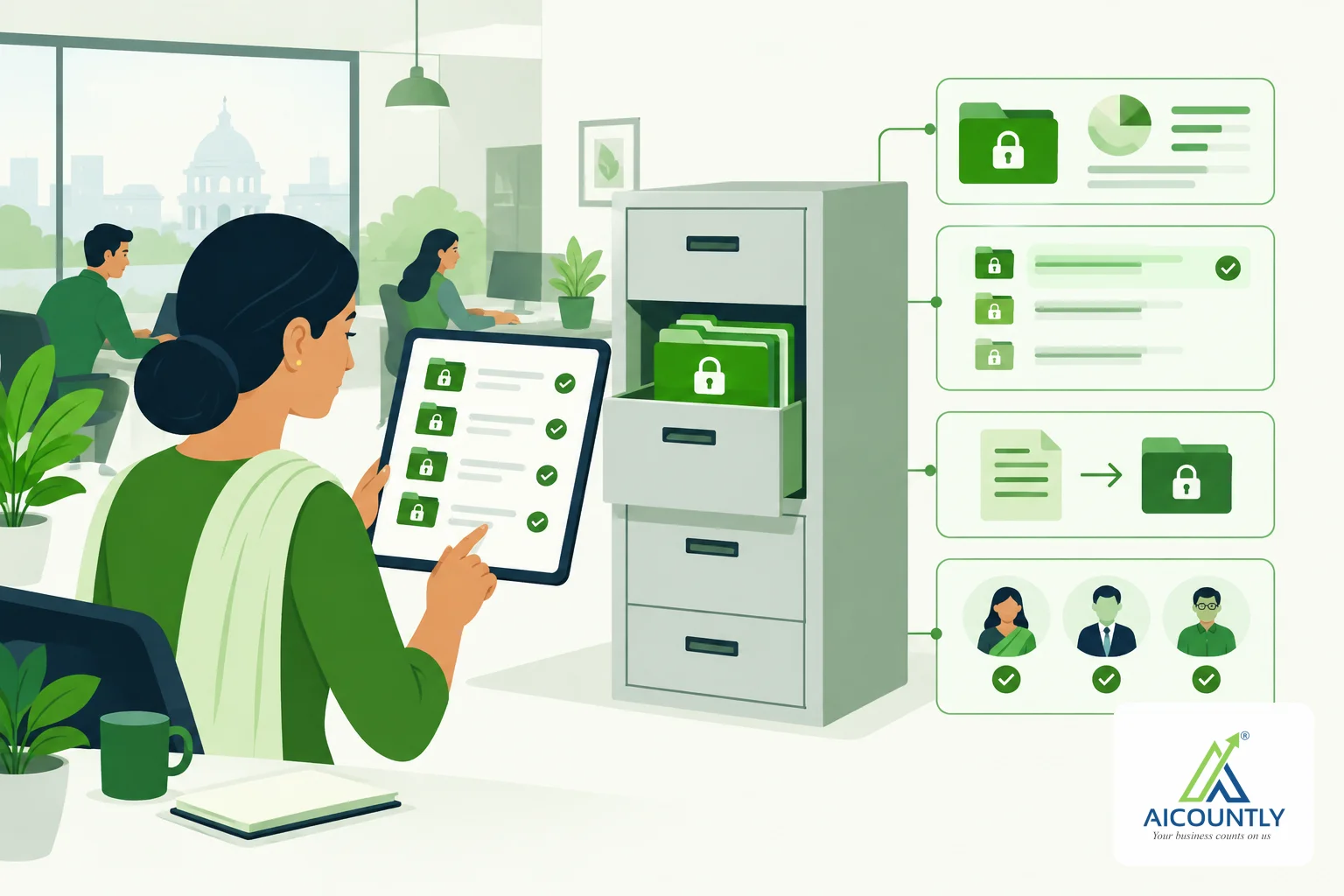
Drive's Admin Reports page answers two questions in one place: which documents are frozen on legal hold, and what happened to the files you imported. If you manage records for a company, this is the page to check before an audit, a notice or a clean-up. Here is how to read it, and what to do when it shows you less than you expected.
What Admin Reports shows
You find Admin Reports in the Drive sidebar, just above Audit Trail and Users & Access. The page has a Refresh button and two separate sections:
- Legal hold, with a count in the heading, for example "Legal hold (3)".
- Import jobs, a history of files you brought into Drive.
The two sections load independently. If one of them is not available to you, the other still shows. That is deliberate: your own import history should not disappear just because you cannot see the legal hold list.
The legal hold report
A legal hold freezes a document. While it is on, the document cannot be archived, trashed or deleted forever, and it is skipped when Trash is emptied. Use it when a record may be needed for a notice, a dispute or an assessment, and it must not disappear because someone tidied up.
The report lists every document currently on hold in the open company, in a table:
ColumnWhat it tells you Doc refThe document's reference, so you can quote it to a colleague or your CA TitleThe document's name ProductThe Aicountly product the document came from RetentionThe retention class set on the document UpdatedWhen the document last changedIf nothing is on hold, the section simply says "No documents on legal hold."
How a document gets onto the list
Open a document in Drive and look at the preview panel's action buttons. Someone with admin rights on that document sees a Legal hold button; once the hold is on, the same button reads Release legal hold. While a hold is active, Archive, Trash, Restore and Delete forever are disabled for that document, and the list shows a small "Legal hold" label beside it.
The Details tab also carries a Retention setting. The classes offered are standard, statutory, hr, audit and contract, and you can set a retain-until date. Retention and legal hold are different tools: retention is a planned "keep until" rule, while a legal hold is an open-ended freeze you lift yourself. Our guide on retention rules and legal hold in Drive explains when to use which.
Who can see the legal hold report
The report is not open to everyone in the company. Drive tells you what it needs: you must own a document in the company, or be allowed to delete one, to see its legal hold report. If you do not meet that, the Legal hold section shows this explanation instead of a table. Pressing Refresh will not change the answer, because it is a permission question and not a fault.
A different message means a different problem. If Drive cannot reach the server, the section shows an error with a Retry button. Retry helps with a lost connection or an outage, not with a missing permission.
The import jobs section
Drive can import a file through the import dialog, which asks you to pick a product and a file, after you have chosen a company, financial year and branch. Each import creates a job. The job is created, the file is uploaded, then Drive validates it and, if validation passes, processes it.
The Import jobs table lists your recent jobs (up to 50), with these columns:
- Job ref, the reference to quote when you ask for help.
- Product, the product you chose when importing.
- File, the file name.
- Status, where the job stands.
- Created, the date and time.
If a file fails validation, the import dialog shows "Validation failed" with the job reference and the reason. The same job reference then appears in this table, so you can match what you saw on screen with the record. If you have not imported anything, you see "No import jobs yet."
One practical limit: the import dialog refuses files that are empty or larger than 500 MB, so split very large exports before you try again.
A simple routine for record-keepers
- Before an audit or a notice: open Admin Reports and check that the documents you must preserve appear under Legal hold.
- After a hold ends: release it from the document's preview panel, then press Refresh to confirm it left the list.
- After a bulk import: scan the Status column for failed jobs and re-import only those files.
- When something looks missing: read the section's message before retrying. A permission note and a Retry error mean different things.
- To see who did what: pair Admin Reports with the Drive Audit Trail, which records who viewed, shared or deleted documents.
Key takeaways
- Admin Reports has two independent sections: Legal hold and Import jobs.
- A document on legal hold cannot be archived, trashed or deleted forever until the hold is released.
- Seeing the legal hold report needs you to own a document in the company or be allowed to delete one.
- Retry fixes outages; it never fixes a permission message.
- Quote the Doc ref or Job ref when you talk to your CA or support.
Keeping records safe is easier when the freeze, the retention class and the history live in one place. If you already store company documents in Drive, open Admin Reports this week and check what it shows. You can also read how to share a document with your CA in Drive. As always, confirm how long a particular record must be kept with your CA.