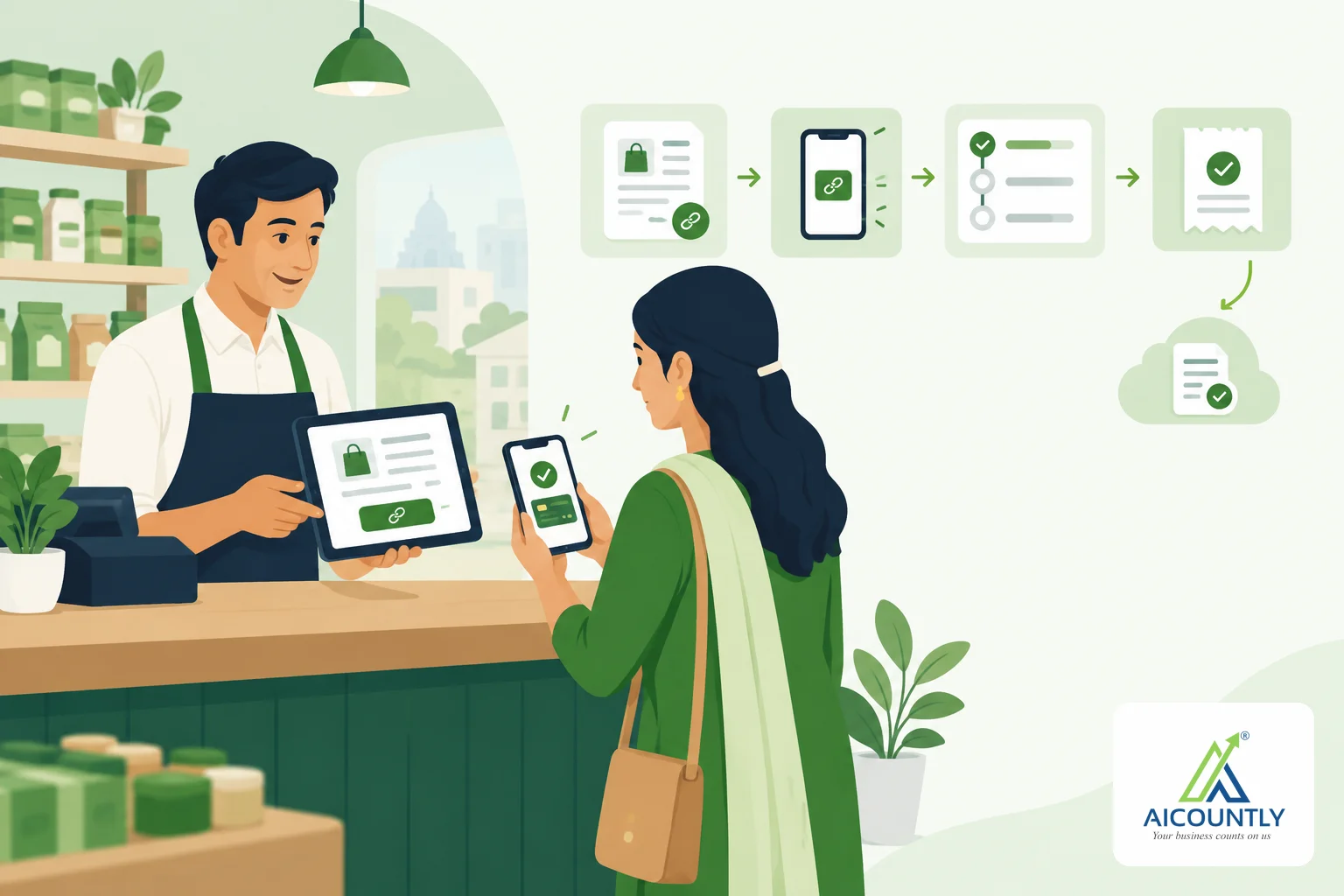
You can collect an invoice online from Billing by getting a payment link for the bill, sending it to your customer and watching its status on the same screen. This guide walks through the steps, what each status means and how the money reaches your books, so a customer's online payment does not turn into another reconciliation chore.
Why collect an invoice online
A bank transfer needs your account details, a screenshot and a follow-up call to confirm. A payment link replaces that with one URL the customer opens and pays from. For a small business, the useful part is not the technology; it is that each payment is tied to a specific bill, so you stop guessing which invoice a lump-sum credit belongs to.
If chasing dues is your bigger problem, start with the ageing routine in Money to Collect in Billing and then use a link for the bills you are chasing.
Before you start
- The bill must be a sale that is saved and posted to Smart Books. The "Collect online" card appears on a posted sale, not on a draft, and not on a bill that Books shows as cancelled.
- Online payment goes through Aicountly Pay, so it must be connected for your company. If it is not, the card says "Online payment is not set up" and gives the reason.
- Your login needs permission to request payment links. Without it you can read the card but not ask for a link.
Step by step: get a payment link for a bill
- Open the sale from your sales list. If you cannot find it, this guide on finding a past bill helps.
- Scroll to the Collect online card and choose Get payment link.
- Choose how much to collect. Leave Amount to collect blank to ask for everything still due in Smart Books, or type a smaller amount in rupees (up to two decimals). Billing checks the format, and the full amount due is checked against Smart Books.
- Optionally set a Last day to pay. The link stops working after that date.
- Tick Let the customer pay in parts only if you are happy with instalments. If you leave it unticked, Pay applies your company's own default.
- Choose Get payment link again to confirm. The link appears with a Copy link button; paste it into your email or message.
If the request does not get an answer straight away, the card says "Not confirmed by Pay yet" and offers Finish getting the link so you do not create a duplicate.
Reading the status on the card
Everything on the card comes from Pay when you open the bill; use Refresh to read it again. The card shows what was asked for, what was paid through Pay, what is still to pay and the last day for the link. These are the statuses you will see:
Status on the cardWhat it means for you Link not sent yetThe link exists but nothing has happened. Copy it and send it. Waiting for the customerThe link is live and unpaid. Part paidThe customer paid some of it. The balance is still payable if part payment is allowed. Paid through PayThe full amount was paid. The card also tells you whether Smart Books has recorded it. Link expired / Link cancelledThe link no longer works. You can get a new one.While a link is live, the card does not offer a second link for the same bill. That protects you from a customer paying twice through two different URLs.
"Paid in Pay" is not the same as "recorded in your books"
Billing never records the money itself, and there is no "mark as paid" button on the card. Smart Books posts the receipt after Pay confirms the payment. The card spells out the difference. It shows "Paid through Pay — recorded in Smart Books" once the receipt is posted, and "Paid in Pay — not yet in Smart Books" if the receipt is still on its way. For each payment it also lists the method, the date and whether the provider has confirmed it.
The practical habit: before you tell a customer a bill is settled, check that the card says it is recorded in Smart Books. If it does not, wait or look at the receipt in Smart Books rather than entering a second receipt by hand.
When you need to cancel a link
Cancel a live link if the customer paid you another way, such as a cheque or cash. Choose Cancel link and give a short reason, for example "Customer will pay by cheque". The card even warns you when a bill is already settled in Smart Books but its link can still be paid, which is the easiest way to end up with a double payment.
If money has already come in through the link, Billing tells you how much and asks you to confirm before it cancels. Cancelling stops further payment but does not refund anything, and Smart Books keeps the receipt for what was paid. A refund is a separate decision you take with the customer.
Keep it tidy: GST and credit notes
A payment link collects money against a bill; it does not change the invoice. If the invoice itself was wrong or goods came back, fix the invoice with a credit note instead of collecting less. Our guide to a credit note in Billing and the note on GST credit notes under Section 34 explain when to use one. For general rules on what a GST invoice must contain, see the Rule 46 invoice checklist. When in doubt about tax treatment, confirm with your CA.
Key takeaways
- Open a posted sale, use the Collect online card and choose Get payment link; leave the amount blank to ask for everything still due.
- Set a last day and allow part payment only if you want it.
- Read the status on the card; "Paid in Pay" becomes "recorded in Smart Books" only after the receipt is posted.
- Cancel the link with a reason if the customer pays another way, so they cannot pay twice.
- Use a credit note, not a smaller payment link, to correct an invoice.
If you already raise your sales bills in Billing, the Collect online card gives you one place to request the link, track it and see whether the receipt has reached Smart Books.