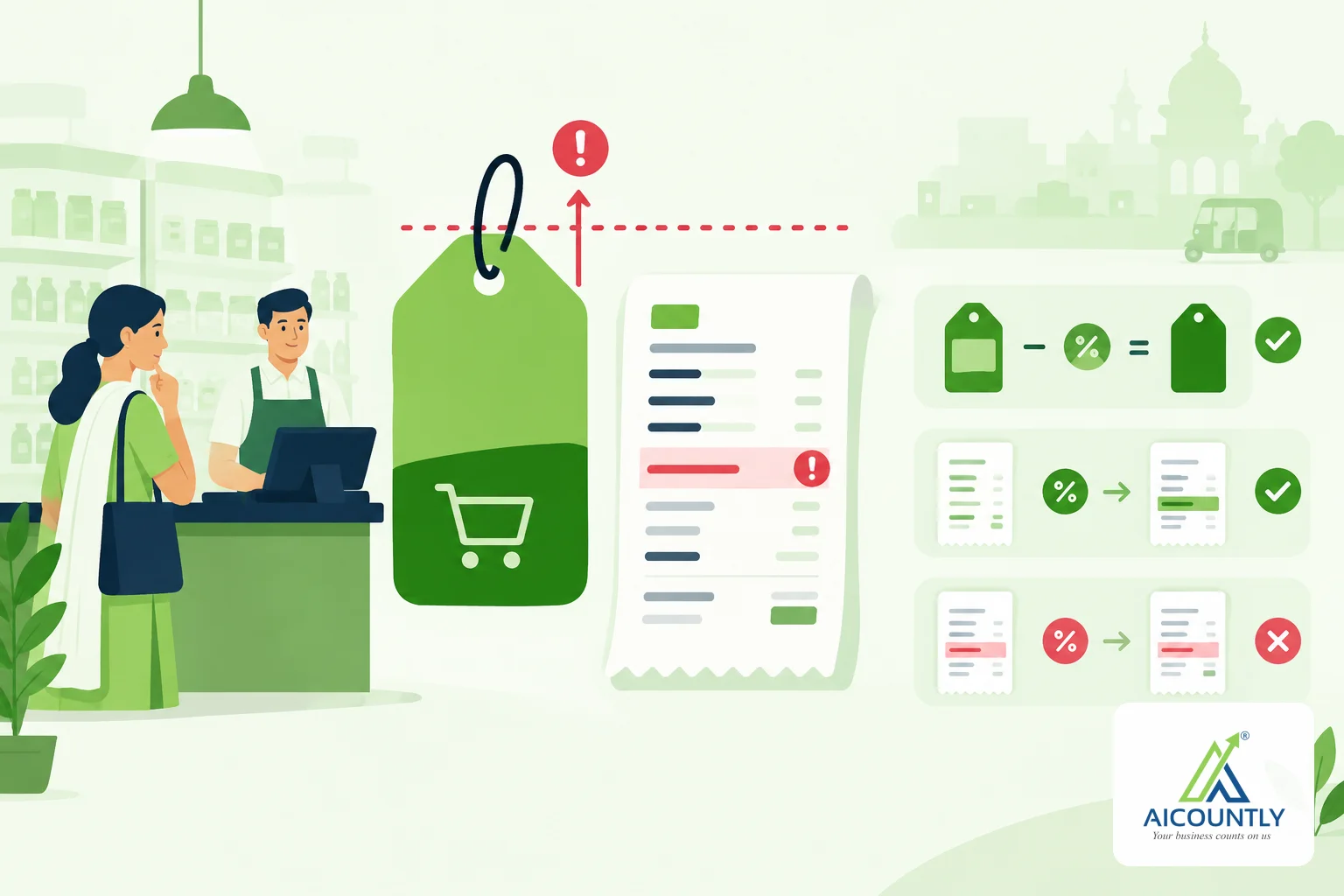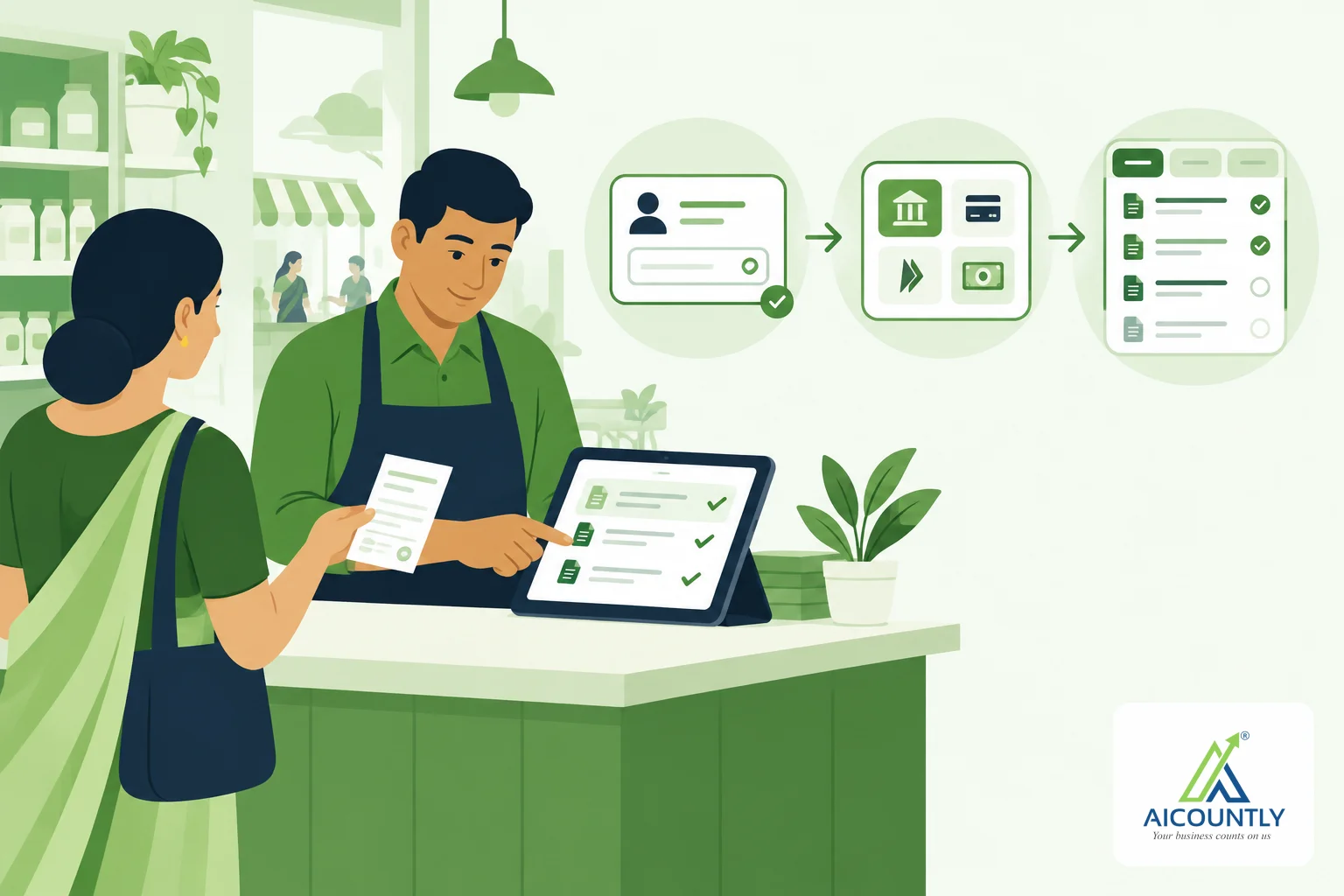
When a customer pays you, recording the receipt is only half the job: you also need to say which invoices that money clears. In Billing, the Money received screen does both in one sitting, and you choose whether it settles the oldest bills automatically, the bills you pick, or nothing at all (an advance).
What the Money received screen is for
Money received is built for one person at a desk or counter recording a payment that has just arrived. Its page description is simple: "Record payments received from your customers." You reach it from the money-in section of Billing, and you need the receipt permission in your Billing profile. If you do not have it, the screen tells you so and asks you to speak to the owner of the company.
One thing worth knowing early: Billing does not keep its own copy of your invoices. It reads the customer's open bills from Smart Books and sends the receipt there, and Smart Books has the final say on whether the allocation is valid. So the bills you see are the ones open right now, not the ones that were open when you started your day.
Step 1: Choose the customer and enter the amount
Start with the customer box. A shortcut helps if you record many receipts: press Alt + M to jump to the customer box, and use the arrow keys and Enter to pick a customer without touching the mouse. Once you choose a customer, a summary panel shows the GSTIN on record (or "No GSTIN on record"), what is outstanding and what is overdue, subject to your profile being allowed to see what is owed.
Then fill in the amount, the date the money was received, and the account it landed in. Billing suggests the first cash or bank account to save you a step, and it never overwrites an account you have already chosen.
Step 2: Say how the money came in
The How field offers five modes: Cash, UPI, Bank transfer (NEFT/RTGS/IMPS), Cheque and Card. The reference box changes its wording to match, so you are always asked for the right thing:
- UPI: the UPI / UTR reference.
- Bank transfer: the UTR or transaction reference.
- Cheque: the cheque number, plus a separate cheque date.
- Card: the card or terminal reference.
- Cash: a receipt or slip number, if you use one.
Filling the reference properly pays off later, when you reconcile the bank statement and need to match a credit to a customer. You can also add a remark of up to 250 characters.
Step 3: Pick the right tab
The tabs change what you see on screen and, for one of them, what is posted. This is the heart of the screen.
Simple
Enter an amount and Billing settles the customer's oldest open bills first. It does not hide this: a line tells you, for example, that the customer has three open bills and that the oldest will be settled first. If you want to see the detail, a "Choose bills" link takes you to the next tab.
Against invoice
This opens a table of the customer's open bills with the invoice number, the date, the due date and the pending amount. Overdue bills carry a badge showing how many days late they are. You can tick a bill to fill it with whatever is left of the receipt, up to the bill's own balance, or type an exact amount in the "Amount to adjust" column. Prefer to let Billing do the sums? Keep Oldest first, automatically ticked. If you untick it, the figures it worked out stay in the table, so nothing empties under your hands.
Use this tab when a customer says "this payment is for invoice 214, not the older ones", which happens often with disputed or part-paid bills.
Advance
An advance allocates nothing. The full amount sits on the customer's account in Smart Books until you settle a bill against it later. This is the only tab that changes the accounting itself, and the screen says so plainly. A receipt with money left over also stays on account in the same way.
Refund
The Refund tab is switched off here on purpose. A refund is money going out, so it is recorded on Money paid, not Money received.
Step 4: Check the three totals before you save
Below the table, three figures tell you whether the receipt adds up: the receipt amount, the amount allocated to bills, and what is left on account. If you have allocated more than the receipt, or more than a single bill's balance, the third figure becomes "Over-allocated" and an error appears before you press Save. Leftover money is normal and is simply shown as left on account; over-allocation is an error that Smart Books would refuse anyway.
Step 5: Save, and keep going
The main button is Save money received. A menu beside it offers more ways to save, such as Save and add another, which is handy when you are entering a batch of cheques. You can also press Ctrl or Cmd with Enter to save.
After saving, Billing confirms that the amount from that customer has been sent to Smart Books, then refreshes what this customer owes and which bills are still open, so the next receipt does not start from stale figures. Billing also guards against double entry: each receipt carries its own submission identifier, so pressing Save twice on the same entry does not create two vouchers.
Common mistakes to avoid
- Using Simple when the customer named an invoice. Simple clears the oldest bills first. Switch to Against invoice if the payment is for a specific one.
- Recording a refund here. Money going out belongs on Money paid.
- Leaving the reference blank. A UTR or cheque number makes bank reconciliation much quicker.
- Ignoring the "left on account" figure. If it is not what you expected, an amount was probably typed wrongly or a bill was already settled.
Key takeaways
- Money received records a payment and decides which invoices it settles in one screen.
- Simple settles the oldest bills first, Against invoice lets you choose, and Advance allocates nothing.
- The totals warn you about over-allocation before you save.
- Bills are read from Smart Books, which makes the final decision on every receipt.
- Refunds go on Money paid, not here.
Where this fits in your collections routine
Recording receipts promptly keeps your list of unpaid invoices honest. Our guide to Money to collect, ageing and reminders in Billing shows how to chase what is still due, and payment links let customers pay online in the first place. If goods come back, a credit note is the right document rather than a receipt. For a month-end review of what is still outstanding, see the debtors ageing routine. General guidance only; confirm your specific accounting treatment with your CA.
If you already use Aicountly Billing, the Money received screen is the quickest way to keep every customer's account current as payments arrive.