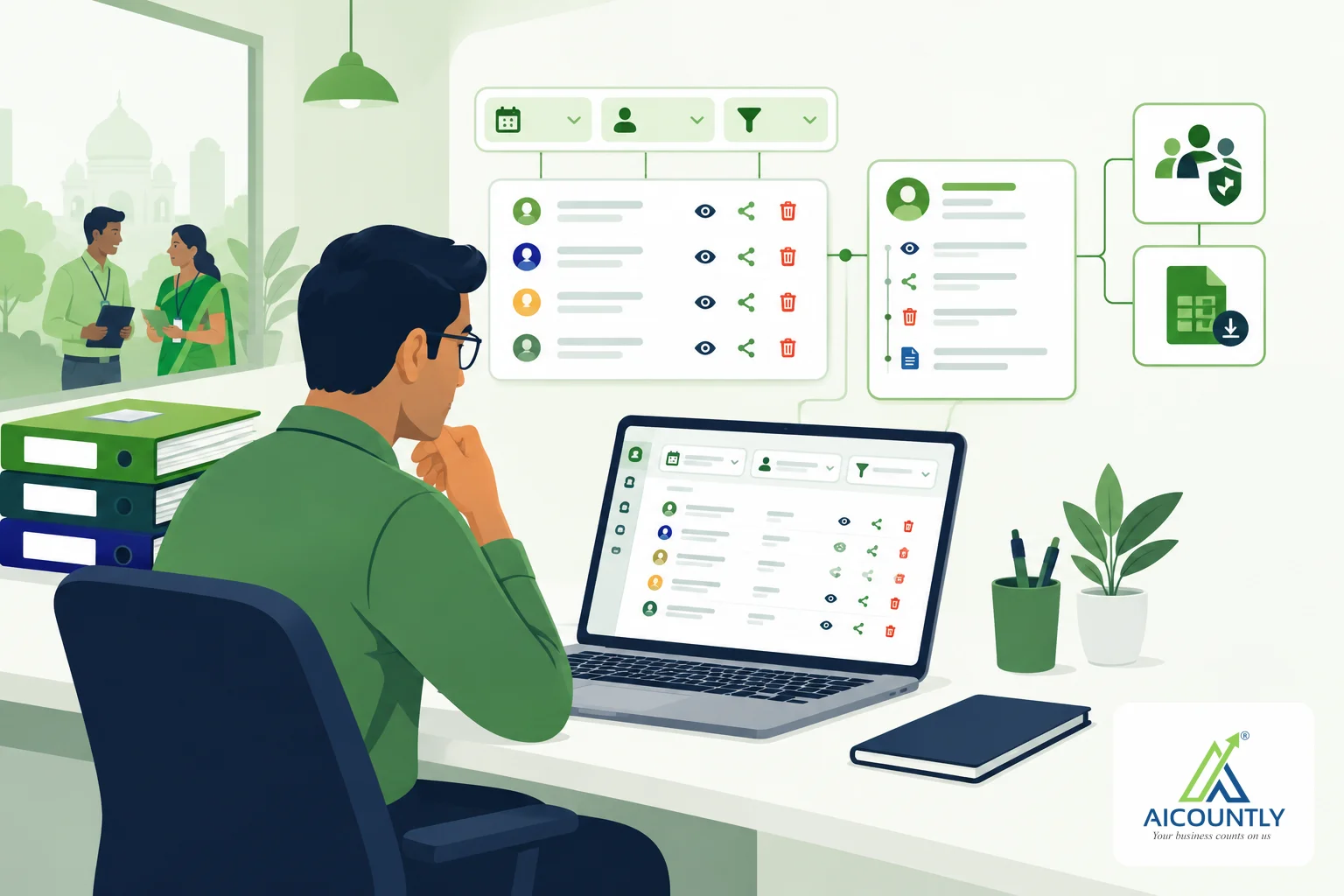
If you run an accounting office or a business group with many companies, "who can open what" is a daily worry. In Manage, the Workspace page answers it with two groups of people: your Workspace team, who open every company in your workspace, and Company users, who open only the companies you share with them. This guide explains the difference, how to move people between the groups and what each removal actually ends.
Why separate your team from your clients
A staff accountant who handles all your clients needs to open every company. A client who owns one company should see only that one. Giving both the same kind of access either exposes client data or forces you to share each new company by hand with each staff member.
Manage keeps one workspace per owner. People you invite by e-mail join its Workspace team. People you only share a single company with are its Company users, and they do not see the workspace at all. You manage both groups from Workspace in the left menu.
Workspace team and Company users at a glance
Workspace teamCompany users What they openEvery company of the workspace, now and later (except companies you hide from the team)Only the companies shared with them Permissions in each appThe team permissions you set for that person, plus anything shared with them directlyWhatever each share allows How they joinThey accept your invitation, or you move themThey accept a company share, or you move them Removing themEnds all their access in the workspaceEnds one company, or all of themInvite someone to your Workspace team
- Open Workspace and find the invite box, "Invite to your team by email". The person must be a registered Aicountly user.
- Optionally open the permissions form first and choose what this person may do in each app.
- Press Invite. The person shows as invited and joins once they accept.
Until they accept, the row reads "waiting for them to accept". If you invited the wrong address, use Withdraw invitation; the dialog tells you exactly what ends.
Set the same permissions for several people
Each group has a checkbox per person and a Select all option. Tick the people you want and choose Set permissions for N selected on the Workspace team. The form opens once, and every selected person gets exactly those team permissions, replacing what they had. Manage shows progress, then how many were changed and why anyone was not; those people stay selected so you can retry.
Move people between the groups
Roles change. A client may become a staff member, or a junior may leave the team but still need one company.
- Move to Company users: before you confirm, the dialog lists the companies the person keeps, the ones already shared with them directly. If none, they lose access to the workspace.
- Move to Workspace team: the dialog says how many companies they will open and with which app permissions. You can also select several Company users and choose Move N selected to Workspace team.
Know what each removal ends
Removal dialogs are written to say plainly what happens:
- Remove a team member: ends all their access in the workspace, team and direct shares.
- Remove from one company (Company user): they lose that company only.
- Remove from all companies: ends every share.
The company's Share screen is equally explicit. Revoking a share for someone on your team removes only what was shared there, because they still open the company through the team. For a Company user, the dialog says how many other companies they keep, or that it was their only one. The Share screen also names who opens the company through the team.
Hide a sensitive company from the team
Sometimes one company should not be open to your whole office, for example your own holding company or a confidential client. Companies you hide from the workspace are left out of what the Workspace team opens. Because discovery and access are separate in Aicountly, a person on the team may still see that other companies exist, but they can open only the ones their access allows. If they try a company they cannot open in an app, they are shown a "Request access" prompt rather than the company's data.
Behind the screens, every Aicountly app checks the company with Manage on each request and names itself, so the answer is decided by Manage on the server, not by what the screen happens to show. That is why changing a person's group on the Workspace page takes effect across the apps your companies use, such as Smart Books and Drive.
Common situations and what to do
- A new staff member joins. Invite them to the Workspace team and set their permissions app by app. They open every current and future company of the workspace, so you do not have to share each new company again.
- A client asks for access to a second company. Share that company with them. They stay a Company user and still do not see your workspace.
- A freelancer works on one client only. Keep them as a Company user for that company, not on the team.
- A team member should stop opening one company. Hide the company from the workspace; they keep the others through the team.
A practical routine for an office
- Put only your own staff on the Workspace team, with permissions matching their work.
- Share each client's company with that client alone, so they stay a Company user.
- When a staff member leaves, remove them from the workspace and check the Share screens of sensitive companies.
- Review the Workspace page monthly, perhaps alongside your document audit trail review.
Sharing documents follows the same principle of giving each person only what the job needs; see how to share a document with your CA in Drive with view, download or edit access.
Key takeaways
- Workspace team = every company, with per-person app permissions. Company users = only what is shared.
- Select several people to set the same team permissions in one step.
- Read the move and remove dialogs: they say which companies a person keeps or loses.
- Access is a control, not a substitute for judgement; confirm sensitive arrangements with your CA or compliance adviser.
Manage (financial years and branches are covered in our earlier guide) is where you set all this up once for every Aicountly app your companies use.