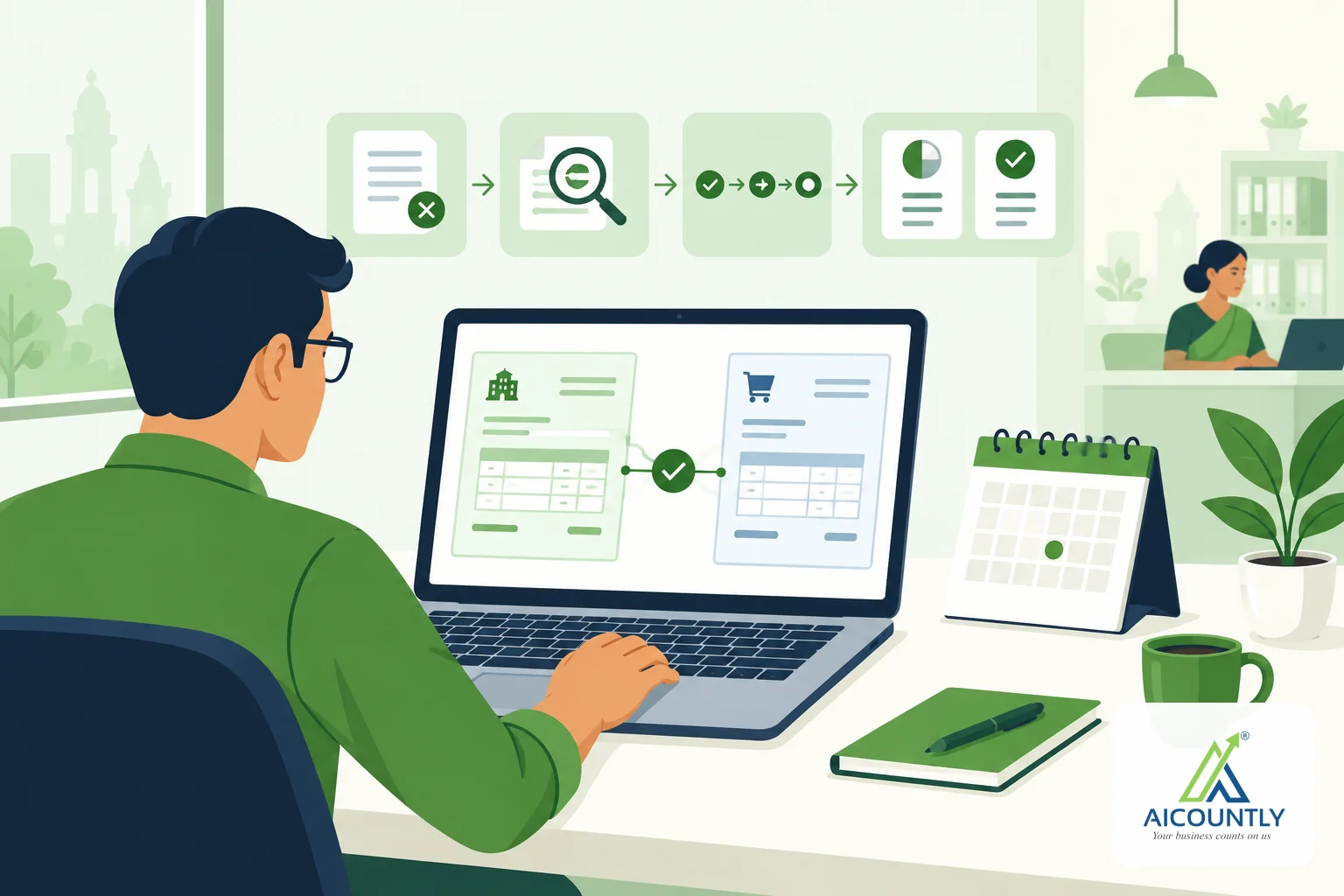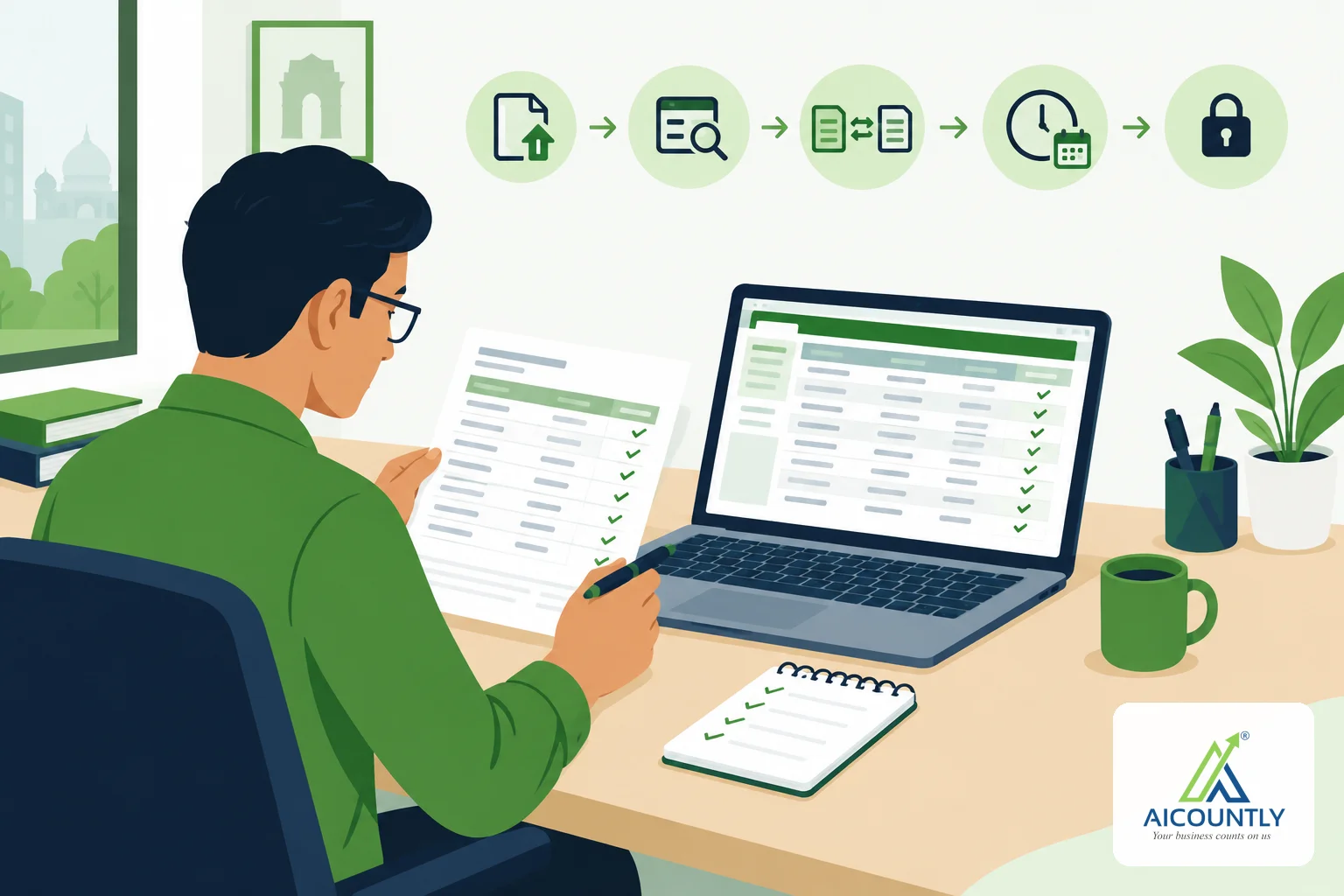
A supplier's statement and your purchase ledger rarely agree on the first look. A vendor reconciliation is the routine of comparing the two, explaining every difference, and closing the month with a balance you can defend. Smart Books has a Vendor Reconciliation screen built for exactly this job, and this guide walks through it step by step.
Why vendor reconciliation matters
Your supplier sends a statement showing what you owe. Your books show a different number. The gap usually has ordinary causes: a bill you have not booked, a payment the supplier has not credited yet, a credit note one side missed, or a plain typing error. Left alone, these differences become disputes at payment time and surprises at year-end.
A monthly check also helps your tax work. If a supplier invoice is missing from your books, you may be missing the matching purchase entry as well, so it is worth settling before you file your GST returns. Check specifics with your CA.
Where to find it in Smart Books
In the menu, go to Reports, then Reconciliation, then Vendor Reconciliation. Access depends on your permissions, so if you cannot see the entry, ask your company admin. Pick the supplier from the Vendor (Sundry Creditor) box, then set the From and To / as of dates for the period you are closing.
Once a vendor is selected, the page shows four numbers at the top: Books balance, Vendor statement, Matched entries and Difference. The difference turns green when the two sides balance.
Step 1: import the supplier's statement
Use Import statement and choose the file. Smart Books accepts CSV, Excel (.xlsx or .xls), PDF and image files (JPG or PNG). If your supplier's CSV has unusual column headings, use the Mappings button to save a column mapping once (date, reference, narration, debit, credit, balance, line type) and pick it from the dropdown next time. Leaving it on Auto headers lets Smart Books read the headings itself.
Uploading the same file twice does not duplicate anything; Smart Books tells you the file was already uploaded and opens its earlier review.
Step 2: review the extracted rows before staging
After import you get a Confirm extracted vendor statement window. It shows the number of rows, the opening and closing balances (or "Not printed" if the statement does not show them), and any warnings. You can correct a date, reference, narration or amount, and set each row's type: invoice, payment, debit note, credit note, adjustment or unknown.
Classify every "unknown" row if you can. If some stay unknown you must tick a box confirming that you reviewed the warnings before the rows are staged. Importantly, confirming only stages the supplier's rows for comparison. It never creates purchase vouchers by itself.
Step 3: match what is obvious, then handle the rest
The screen shows two lists side by side: your books (bills, payments and notes) and the vendor statement's confirmed rows. Use the tabs All, Unmatched, Matched and Ignored to focus.
- Auto-match pairs exact items and tells you how many it matched.
- Manual match works when you select one books item and one statement row, for example when the supplier combined two things differently.
- Undo reverses a match you made by mistake.
- Ignore sets aside a statement row you decide not to reconcile, and Restore brings it back.
- Create purchase bill is available for an unmatched statement row of type invoice, so a bill you forgot to book can be created straight from the statement.
Step 4: record items that explain the difference
Some differences are genuine and will clear next month, such as a payment in transit. Opening items lets you record these with a date, a description, an amount and a direction: books only, vendor only, or a timing difference in either direction. They feed into the formal statement, and open items can be carried between financial years.
Step 5: produce the formal statement and close the period
The Formal statement button builds a Vendor Reconciliation Statement as of your chosen date. It starts from the vendor statement closing balance, adds bills in your books but not in the statement, subtracts items in the statement but not in your books, adjusts for timing differences, and compares the result with your books ledger closing. You can export it to Excel or PDF to send to the supplier.
To close the period, use the session buttons: Start session, Submit session, Approve and Lock. If the difference is not zero, you can still submit, but you must enter a force-submission reason that is recorded with the session. A locked session can be reopened, again with a recorded reason. That trail is useful when your auditor asks why a balance was accepted.
A simple monthly routine
- Request statements from your main suppliers after month-end.
- Import each one and clear the "unknown" rows.
- Run auto-match, then handle the leftovers manually.
- Book missing bills and record timing items.
- Export the formal statement and keep it with the month's records.
Key takeaways
- Reconcile supplier balances every month, not only at year-end.
- Import, review and stage statement rows first; nothing is posted to your books at that stage.
- Use auto-match for exact items and manual match for the rest.
- Record timing differences as opening items so the formal statement proves the balance.
- Submit, approve and lock the session to leave a clear trail.
If you already keep your books in Smart Books, you can try this routine on your next supplier statement; see our guides on bank reconciliation in Smart Books and mapping a GSTR-2B invoice to a purchase bill, and the help article on reconciling a vendor statement. For the wider picture, read our bookkeeping checklist for Indian SMEs. Learn more about Smart Books.